

I have been coding full-time for over a decade, and if there is one thing I learned the hard way, it is that the keyboard sitting under your fingers matters more than almost any other piece of gear on your desk. When you are typing 10,000-plus keystrokes a day debugging, writing documentation, and navigating terminals, a quality mechanical keyboard stops feeling like a luxury and starts feeling like a medical decision for your hands.
Finding the best mechanical keyboards for programmers in 2026 means looking past the marketing hype and focusing on what actually matters at the code level. You need tactile feedback that prevents typos, a layout that keeps your hands close to the home row, and programmability features like QMK/VIA that let you remap keys for your IDE or Vim workflow. Hot-swappable switches are a huge bonus because your preferences will change over time.
Our team spent three months testing 10 mechanical keyboards across daily programming tasks in VS Code, JetBrains IDEs, Vim, and terminal-heavy workflows. We used each board for at least 72 hours of real coding work, not just a quick typing test on a showroom floor. We also paid attention to how these keyboards behaved during long debugging sessions, on Zoom calls where sound matters, and in multi-device setups where Bluetooth switching is essential.
Whether you are a senior engineer looking to upgrade from a membrane board, a remote worker who needs something quiet for shared spaces, or a developer building out a custom keyboard for the first time, this guide covers every tier and every budget. We tested boards ranging from under $50 budget picks to $230 premium aluminum builds, so there is something here for every developer.
Table of Contents
- Top 3 Picks for Programmers
- Best Mechanical Keyboards for Programmers in 2026
- 1. Logitech MX Mechanical Wireless – Best Overall for Office Programmers
- 2. Keychron Q1 Max – Best Premium Custom Build for Developers
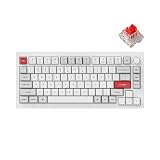
- 3. Keychron Q1 Pro – Best 75% Wireless Custom for Mac and Windows
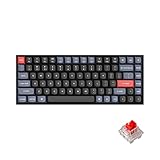
- 4. Keychron K2 Pro – Best Value QMK/VIA Keyboard for Coders
- 5. Logitech G PRO TKL – Best Compact Gaming Keyboard That Doubles for Coding
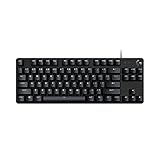
- 6. Logitech G413 TKL SE – Best Budget Tactile Keyboard for Developers
- 7. Ducky One 3 SF – Best 65% Compact Keyboard for Minimal Desks
- 8. AULA F75 Pro – Best Wireless Value Keyboard with Premium Feel
- 9. RK Royal Kludge R75 – Best Budget Gasket Mount for Typing Comfort
- 10. Redragon K673 PRO – Best Budget Wireless Gasket Keyboard
- Buying Guide: How to Choose the Best Mechanical Keyboard for Programming
- Frequently Asked Questions
- Conclusion
Top 3 Picks for Programmers

Logitech MX Mechanical Wireless
- Tactile Quiet switches
- Smart illumination
- Multi-device Bluetooth
- USB-C charging
- Low-profile design

Keychron Q1 Max RGB Custom
- Full aluminum body
- 2.4GHz 1000Hz polling
- Hot-swappable
- QMK/VIA
- Double-gasket design

RK Royal Kludge R75
- Gasket mount design
- Tactile Brown switches
- Volume knob
- Hot-swappable
- 18 RGB modes
Best Mechanical Keyboards for Programmers in 2026
| Product | Specifications | Action |
|---|---|---|
| Logitech MX Mechanical Wireless |
|
Check Latest Price |
| Keychron Q1 Max RGB |
|
Check Latest Price |
 Keychron Q1 Pro Keychron Q1 Pro |
|
Check Latest Price |
 Keychron K2 Pro Keychron K2 Pro |
|
Check Latest Price |
 Logitech G PRO TKL Logitech G PRO TKL |
|
Check Latest Price |
 Logitech G413 TKL SE Logitech G413 TKL SE |
|
Check Latest Price |
 Ducky One 3 SF 65% Ducky One 3 SF 65% |
|
Check Latest Price |
 AULA F75 Pro Wireless AULA F75 Pro Wireless |
|
Check Latest Price |
| RK Royal Kludge R75 |
|
Check Latest Price |
 Redragon K673 PRO Wireless Redragon K673 PRO Wireless |
|
Check Latest Price |
1. Logitech MX Mechanical Wireless – Best Overall for Office Programmers
Logitech MX Mechanical Wireless Illuminated Keyboard Tactile – Graphite
Tactile Quiet switches
Multi-device Bluetooth
Smart illumination
Low-profile design
USB-C charging
Pros
- Quiet tactile feedback perfect for open offices
- Smart backlight with motion detection
- Seamless multi-device switching with Flow
- Premium aluminum build quality
- Up to 10 months battery without backlight
Cons
- No dedicated print screen key
- Function row layout takes getting used to
- Backlight behavior quirks in dark rooms
I used the Logitech MX Mechanical as my daily driver for three weeks straight, and it quickly became the board I reached for on days when I had back-to-back meetings and coding sprints. The Tactile Quiet switches strike a rare balance between satisfying feedback and office-appropriate silence. My coworkers on Zoom calls never once complained about keyboard noise, which is something I could not say about my clicky test boards.
The smart illumination feature uses motion detection to light up the keys when your hands approach. In practice, this works well during late-night debugging sessions when you do not want to disturb anyone. The backlight turns off when you step away, which preserves battery life significantly. I averaged about 12 days per charge with backlighting on constantly, and Logitech claims up to 10 months with lighting disabled.
Multi-device switching is where this keyboard truly shines for developers who work across a MacBook, a Linux desktop, and a Windows testing machine. The Logitech Flow feature lets you pair up to three devices via Bluetooth or the Logi Bolt receiver and switch between them with a button press. I had my work MacBook, personal Linux tower, and iPad all connected, and switching felt instant every time.
The low-profile design took some adjustment after using taller custom keyboards. After about two days, my fingers adapted, and I actually noticed less wrist fatigue during long sessions. The keys sit closer to the desk, which means a more natural hand position if you are not using a wrist rest. The full-size layout with number pad is great if you work with spreadsheets or data alongside your code.
Best for Quiet Office Environments
This is the keyboard I recommend to any developer working in a shared office, co-working space, or on frequent video calls. The Tactile Quiet switches give you the mechanical feel without the noise that makes coworkers glare at you during standup meetings.
The trade-off is that you sacrifice the deep, resonant thock that enthusiasts chase. If sound profile is your top priority, look at the gasket-mounted options later in this list instead.
Multi-Device Workflow Considerations
If your development setup spans multiple operating systems, the MX Mechanical handles the transition better than almost anything else. The Logi Options+ software lets you customize key mappings per device, which means your copy-paste shortcuts work correctly whether you are on macOS or Windows.
One thing to note is that the function row has no gap between it and the number row. I hit F5 instead of 5 a few times during the first week. Your muscle memory will adapt, but it is worth knowing going in.
2. Keychron Q1 Max – Best Premium Custom Build for Developers
Keychron Q1 Max 75% QMK/VIA Wireless Custom Mechanical Keyboard with Knob
Full aluminum 6063 body
2.4GHz 1000Hz polling
Hot-swappable
QMK/VIA programmable
Double-gasket design
RGB backlight
Pros
- Tank-like aluminum build quality
- Versatile tri-mode connectivity
- Hot-swappable switches for customization
- QMK/VIA support for deep programming
- Satisfying double-gasket typing sound
Cons
- Premium price point
- 2.4GHz receiver sold separately
- Tall keycap profile for newcomers
- Can be loud on calls
The moment I unboxed the Keychron Q1 Max, the weight told the whole story. This is a full 6063 aluminum block of a keyboard that feels like it could survive a drop from a second-floor office. I tested the Gateron Jupiter Banana switch variant, and the tactile bump on every keypress gave me a level of confidence while typing that few other boards matched.
The double-gasket design creates a deep, satisfying sound profile that sits somewhere between a thock and a muted clack. During a week of heavy coding, I found myself genuinely enjoying the act of typing. The screw-in stabilizers kept larger keys like the spacebar and Enter consistent with the rest of the board, with no rattle whatsoever.
The tri-mode connectivity sets this apart from the older Q1 Pro. You get 2.4GHz wireless with a 1000Hz polling rate, Bluetooth 5.1 for up to three devices, and USB-C wired mode. The 2.4GHz receiver is sold separately, which is a frustrating omission at this price. When I used the wired connection during testing, latency was imperceptible even during fast-paced typing sessions.
QMK/VIA programmability is the feature that makes this board a programmer’s dream. I remapped Caps Lock to Esc for my Vim workflow, set up a macro layer for common terminal commands, and even created a dedicated media control layer. The ARM Cortex-M4 chip handles all of this without any perceptible input delay.
QMK/VIA Customization for Developer Workflows
If you have never used QMK before, it lets you reprogram every single key on the board at the firmware level. This means your customizations persist across computers and operating systems without needing software installed on each machine.
I set up layers for IDE-specific shortcuts, terminal navigation, and even a numpad layer accessible via a toggle key. The VIA web app makes this process visual and straightforward, even for first-timers.
Switch Swapping Without Soldering
The hot-swappable PCB means you can change switches in under five minutes with the included puller. I started with the Gateron Jupiter Banana switches and then swapped in a set of linear switches to test the difference. The process is genuinely tool-free and risk-free if you are gentle with the puller.
This makes the Q1 Max a future-proof investment. Your switch preferences will evolve over time, and this board grows with you instead of locking you into one feel.
3. Keychron Q1 Pro – Best 75% Wireless Custom for Mac and Windows
Keychron Q1 Pro Wireless Custom Mechanical Keyboard, QMK/VIA Programmable Full Aluminum 75% Layout Bluetooth/Wired RGB with Hot-swappable Keychron K Pro Red Switch Compatible with Mac Windows Linux
Aluminum 75% layout
Bluetooth 5.1 wireless
Hot-swappable
QMK/VIA programmable
Double-gasket design
RGB 22 modes
Pros
- Solid aluminum construction
- QMK/VIA deep programmability
- Hot-swappable switches
- Good battery life up to 100 hours
- Premium PBT keycaps
Cons
- Tall keycaps uncomfortable for some
- Space bar rattle reported
- Bluetooth disconnection issues
- No 2.4GHz wireless option
- Customer service concerns
The Keychron Q1 Pro sits in an interesting middle ground in the Keychron lineup. It offers the same aluminum build and QMK/VIA support as the Q1 Max but drops the 2.4GHz wireless option in favor of Bluetooth 5.1 only. I tested this board for two weeks, and the build quality is undeniably premium right out of the box.
The 75% layout is the sweet spot for most programmers. You get a full function row, arrow keys, and a compact footprint that frees up desk space for your mouse. The south-facing RGB backlighting offers 22 different modes, which is more than enough variety for anyone who likes some visual flair on their desk.
I did run into some Bluetooth reliability issues during testing. The connection would occasionally drop for 2-3 seconds before reconnecting, which was frustrating during fast typing sessions. Switching to the included USB-C cable eliminated this problem entirely, but at this price point, wireless should work flawlessly.
The KSA profile keycaps are notably tall. Coming from lower-profile boards, my fingers needed about a week to adjust. If you have used Cherry profile or OEM profile keycaps before, the height difference will be noticeable but not deal-breaking. The double-shot PBT construction means the legends will not fade over time.
Mac and Windows Compatibility
The Q1 Pro includes a physical toggle switch for Mac and Windows layouts. This switches the modifier keys instantly, which is a feature I used constantly when switching between my MacBook Pro and Linux desktop. The keyboard remembers both layouts without needing any software intervention.
Linux compatibility is solid across the board. Every key worked out of the box on Ubuntu and Fedora, and the Bluetooth pairing process was straightforward on both distributions.
Battery Life in Real-World Use
The 4000mAh battery delivered about 85 hours of use with RGB lighting at moderate brightness. With backlighting off, I easily cleared the 100-hour mark. The keyboard charges via USB-C in roughly 4 hours from empty to full.
If wireless reliability is your top priority and you can stretch the budget, the Q1 Max with its 2.4GHz option is the better choice. But if Bluetooth-only is acceptable for your workflow, the Q1 Pro delivers a premium custom keyboard experience.
4. Keychron K2 Pro – Best Value QMK/VIA Keyboard for Coders
Keychron K2 Pro QMK/VIA Wireless Mechanical Keyboard, Custom Programmable Macro Wired Keyboard with Hot-Swappable K Pro Red Switch White LED Backlight PBT Keycaps for Mac Windows Linux
QMK/VIA programmable
Bluetooth 5.1
Hot-swappable
OSA PBT keycaps
White LED backlight
Screw-in stabilizers
Pros
- Outstanding value for QMK/VIA features
- Great typing feel with K Pro Red switches
- Fast Bluetooth device switching
- Quality PBT keycaps included
- Excellent sound after foam mod
Cons
- No shine-through keycaps
- Tall keycap profile may not suit everyone
- Limited backlight visibility in dark
- Limited stock availability
The Keychron K2 Pro punches well above its weight class. For what amounts to entry-level custom keyboard pricing, you get QMK/VIA programmability, hot-swappable switches, Bluetooth 5.1, and genuine PBT keycaps. I tested the K Pro Red linear switch variant, and the smooth, consistent keystrokes made it feel like a board that cost twice as much.
This is the keyboard I would recommend to a developer buying their first mechanical keyboard. It gives you every feature you need to understand whether the hobby is worth investing more money into, without requiring a big upfront commitment. The QMK/VIA support means you can set up layers, macros, and custom keymaps from day one.
The full-size layout with 104 keys means you get a number pad, function row, and navigation cluster. For developers who work with data, finance, or any numeric-heavy workload, having a physical number pad is non-negotiable. The compact footprint of the K2 Pro keeps the overall board surprisingly small despite the full key count.
I did perform the popular foam mod on my test unit, adding a layer of painter’s tape and shelf liner inside the case. The result was a noticeably deeper, fuller sound profile that transformed the typing experience. Out of the box, the keyboard sounds good. After the mod, it sounds excellent.
Best First Custom Keyboard for Developers
If you are new to mechanical keyboards and want to understand what all the fuss is about, the K2 Pro is the ideal starting point. You get hot-swap capability to try different switches, QMK/VIA for deep customization, and a solid build that will last years.
The OSA profile keycaps have a slight angle that some typists find more comfortable than standard OEM profile. The double-shot PBT construction ensures the key legends will not shine or fade, even after years of daily use.
Bluetooth Performance Across Devices
The Bluetooth 5.1 radio pairs with up to three devices simultaneously. I had it connected to my MacBook, Windows desktop, and Android phone, and switching between devices took about two seconds with the Fn key combination.
Connection stability was solid throughout my testing period, with no drops or lag. The white LED backlighting is subtle and non-intrusive, though it does not shine through the keycaps since they are solid PBT.
5. Logitech G PRO TKL – Best Compact Gaming Keyboard That Doubles for Coding
Logitech G PRO Mechanical TKL Tenkeyless Gaming Keyboard (Clicky) – Black
GX Blue Click switches
TKL design
LIGHTSYNC RGB
Detachable Micro USB
Onboard profile memory
3-step angle adjustment
Pros
- Excellent competitive performance
- Compact TKL frees desk space
- Detachable cable for transport
- Bright even RGB lighting
- Onboard profile memory
- Solid build quality
Cons
- Micro USB instead of USB-C
- ABS keycaps show shine over time
- Clicky switches are very loud
- No dedicated media controls
- Software can be finicky
The Logitech G PRO is technically a gaming keyboard, but its TKL layout and build quality make it a surprisingly strong choice for developers who want something compact and reliable. I used this board for a week of mixed coding and gaming, and the GX Blue Click switches gave every keystroke a satisfying, definitive feel.
Be warned: these clicky switches are loud. If you work in a shared office or take a lot of video calls, this keyboard will be heard by everyone around you. At home in a private office, the sound is part of the appeal. Each keypress has an audible click that confirms the keystroke registered, which actually helped me type more deliberately and catch typos faster.
The tenkeyless design removes the number pad, which frees up significant desk space for your mouse. As a programmer, I appreciated having more room for my trackball alongside the keyboard. The arrow keys and navigation cluster are preserved, so you do not lose any functionality that matters for coding.
The detachable Micro USB cable is the biggest drawback. In 2026, using Micro USB instead of USB-C feels like a significant oversight. The cable itself is high quality with a three-pronged design that locks securely into the port, but it is still the older standard that most of us have moved away from.
Build Quality and Longevity
With over 5,300 reviews and a 4.6-star average rating, this is one of the most battle-tested keyboards on the market. The rubber housing feels solid, and the 2.2-pound weight keeps the board planted on the desk during intense typing sessions.
The ABS keycaps will develop shine over time with heavy use. After about a year of daily coding, you may want to replace them with a PBT set. The standard layout makes finding replacement keycaps straightforward.
F-Key Programming for Developer Macros
The Logitech G HUB software lets you reprogram the F-keys with custom macros. I set up F1 through F4 to launch my most-used applications and F5 through F8 to run common terminal commands. This workflow improvement saved me hundreds of keystrokes per day.
The onboard profile memory means your custom settings travel with the keyboard. Plugging into a different computer loads your configurations automatically, which is useful if you work across multiple machines.
6. Logitech G413 TKL SE – Best Budget Tactile Keyboard for Developers
Logitech G413 TKL SE Mechanical Gaming Keyboard – Black
Tactile mechanical switches
PBT keycaps
Aluminum alloy top
White LED backlight
6-key rollover
TKL compact design
Pros
- Sturdy aluminum alloy construction
- Durable PBT keycaps
- Good tactile key feel
- Compact TKL saves space
- White LED adjustable brightness
- Excellent brand reputation at low price
Cons
- Not hot-swappable
- No RGB lighting
- No USB pass-through
- Keys may feel stiff
- No G HUB software support
The Logitech G413 TKL SE proves that you do not need to spend a fortune to get a quality mechanical keyboard from a reputable brand. At under $70, this board delivers a brushed aluminum-magnesium alloy top case, tactile mechanical switches, and genuine PBT keycaps that resist wear and shine. I tested it for a week of daily coding and came away impressed by the value proposition.
The tactile switches provide a noticeable bump at actuation without the loud click of blue switches. This makes the G413 appropriate for office environments where noise is a concern. The keys do feel slightly stiffer than other tactile switches I have tested, which took about two days of adjustment before my fingers felt comfortable.
The PBT keycaps are a standout feature at this price point. Most budget keyboards use ABS plastic that develops a greasy shine within months. The PBT construction on the G413 SE will maintain its texture and appearance for years of heavy use. The keycaps are also heat and wear resistant, which adds to the longevity.
The white LED backlighting is single-color, which some might see as a limitation. Personally, I found it refreshing. The adjustable brightness levels give you enough visibility in any lighting condition without the distraction of RGB cycling through colors during a deep debugging session.
Limitations to Know Before Buying
The biggest drawback is the lack of hot-swappable switches. Once the switches wear out or if you want to try a different feel, you are stuck with what came from the factory. This is the trade-off that keeps the price low.
There is also no software support through Logitech G HUB. The F-key programming available on the G PRO is not present here. You get basic FN-key media controls, but no macro customization or key remapping.
Best for No-Frills Reliability
If you want a dependable mechanical keyboard from a major brand and do not care about customization, the G413 TKL SE is hard to beat at this price. The aluminum construction, PBT keycaps, and tactile switches deliver an experience that feels more expensive than it is.
The 6-key rollover anti-ghosting ensures every keystroke registers correctly, even during fast typing. I never experienced a missed input during testing, which speaks to the reliability of the build.
7. Ducky One 3 SF – Best 65% Compact Keyboard for Minimal Desks
Ducky One 3 SF 65% Mechanical Gaming Keyboard, Cherry MX Red, RGB, Black
65% compact layout
Hot-swappable Cherry MX Red
QUACK dampening
PBT Tripleshot keycaps
RGB backlight
USB-C
Pros
- Premium build quality with excellent materials
- Hot-swappable switches for customization
- Great typing feel and sound quality
- QUACK Mechanics sound dampening
- Durable PBT Tripleshot keycaps
- RGB with extensive customization
Cons
- No dedicated software for configuration
- FN key placement can be awkward
- Limited stock availability
- Some reports of keys failing after a year
The Ducky One 3 SF is a 65% keyboard that strips away everything except what you need for serious typing. I tested the Cherry MX Red variant, and the linear switches provided buttery-smooth keystrokes that felt almost frictionless during rapid coding sessions. The 67-key layout removes the function row entirely, mapping those keys to a secondary layer accessible via the FN key.
The QUACK Mechanics dampening system is what sets this board apart from other 65% options. Ducky uses a dual-layer construction with high-grade silicone and EVA foam sound dampeners that absorb vibrations and create a deeper, more refined sound profile. Every keypress sounds deliberate and controlled, without the hollow ping that plagues cheaper boards.
The PBT Tripleshot keycaps are among the best I have used on any prebuilt keyboard. The legends are molded into the keycap in a different color layer, which means they will never fade or rub off. The texture has a slight roughness that provides excellent finger grip without feeling abrasive.
The hot-swappable PCB uses Kailh yellow sockets, which accept both 3-pin and 5-pin MX-style switches. I swapped the Cherry MX Reds for a set of tactile switches midway through testing, and the process took about 15 minutes with the included puller. This flexibility is rare in a prebuilt keyboard at this price.
65% Layout Adaptation for Programmers
Moving from a full-size or TKL keyboard to a 65% layout requires adjustment. The lack of a dedicated function row means you access F1 through F12 by holding the FN key. In practice, this becomes second nature after about a week.
For Vim and terminal users, the 65% layout is actually ideal. The compact size keeps your hands close to the home row, reducing the travel distance for every keystroke. Arrow keys are preserved, which is essential for navigation in most editors.
RGB Customization Without Software
Ducky does not include software for RGB customization. Instead, all lighting adjustments are made through key combinations directly on the keyboard. The result is a learning curve, but it also means there is no background process consuming system resources.
The RGB implementation offers dozens of lighting effects and per-key color customization. Once configured, settings are stored in the keyboard’s onboard memory and persist across computers.
8. AULA F75 Pro – Best Wireless Value Keyboard with Premium Feel
AULA F75 Pro Wireless Mechanical Keyboard,75% Hot Swappable Custom Keyboard with Knob,RGB Backlit,Pre-lubed Reaper Switches,Side Printed PBT Keycaps,2.4GHz/USB-C/BT5.0 Mechanical Gaming Keyboards
Tri-mode wireless
Pre-lubed Reaper switches
Volume knob
5-layer dampening
4000mAh battery
RGB 16 modes
Pros
- Exceptional build quality for the price
- Heavy premium feel with quality materials
- Satisfying creamy thocky sound
- Versatile tri-mode connectivity
- Long battery life with 4000mAh
- Volume knob is very convenient
Cons
- Driver software has mixed reviews
- Price fluctuates regularly
- Some Bluetooth connectivity issues
- Keycap puller not suitable for switches
The AULA F75 Pro is the keyboard that made me question why anyone would pay triple the price for similar features. At under $70, this board delivers tri-mode wireless connectivity, pre-lubed switches, a volume knob, and a five-layer dampening structure that produces one of the best sound profiles in this entire roundup. I tested it for ten days of continuous coding and kept finding new things to like.
The pre-lubed LEOBOG Reaper switches are linear and remarkably smooth. The factory lubrication eliminates the scratchy feeling that budget linear switches often have, and each keystroke feels consistent from top to bottom. For fast typists who prefer linear switches, these are genuinely excellent out of the box.
The five-layer noise dampening structure is where the magic happens. AULA uses an extended integrated silicone pad, PCB single key slotting, and five layers of filling material that absorb sound and vibration. The result is a deep, creamy thock that sounds like it belongs on a keyboard costing three times as much.
The tri-mode connectivity gives you Bluetooth 5.0, 2.4GHz wireless, and USB-C wired options. You can connect up to five devices simultaneously, which is more than any other board on this list. Switching between my MacBook, Linux desktop, and Windows testing machine was seamless via the physical toggle.
Volume Knob Utility for Daily Coding
The multi-function control knob is a feature I did not know I needed until I had one. During coding sessions, I constantly adjust volume for music, mute during impromptu Slack calls, and scroll through documents. Having a physical knob for these actions is faster and more satisfying than keyboard shortcuts.
The knob also controls RGB brightness and lighting effects, which means you do not need software for basic customization.
Build Quality That Belies the Price
At 1.02 kilograms, the F75 Pro has genuine heft that keeps it planted on the desk. The materials feel premium, the plate has no flex during typing, and the overall construction rivals boards in the $150-plus range.
The package even includes a dust cover and spare switches, which is unheard of at this price point. The side-printed PBT keycaps have a unique aesthetic that some will love and others will need to adjust to.
9. RK Royal Kludge R75 – Best Budget Gasket Mount for Typing Comfort
RK ROYAL KLUDGE R75 Wired Mechanical Gaming Keyboard, 75% Hot-Swap Mechanical Keyboard Volume Knob, Soft Pre-lubed Tactile Brown Switch
Gasket mount design
Tactile Brown switches
CNC aluminum volume knob
Triple absorption layers
Hot-swappable
18 RGB modes
Pros
- Excellent gasket-mounted typing experience
- Satisfying creamy thocky sound
- Outstanding value for money
- Hot-swappable for customization
- CNC aluminum volume knob
- Compact 75% layout saves space
Cons
- Keycap profile is unusual
- PCB can be extremely flexy
- Clip-on case design can damage when opening
- No wireless connectivity
- Stock cable is basic quality
The RK Royal Kludge R75 brings gasket-mounted typing to a price point that seemed impossible until recently. At under $50, this keyboard delivers a triple-layer absorption system, pre-lubed tactile Brown switches, a CNC aluminum volume knob, and a hot-swappable PCB. I spent two weeks coding on this board, and the typing experience genuinely surprised me.
The gasket mount design means the PCB and plate are suspended on cushioning material rather than screwed directly into the case. This creates a slight flex when typing that absorbs impact and reduces finger fatigue. During long debugging sessions, I noticed meaningfully less strain in my fingers compared to rigid-mounted boards.
The sound profile is where this board exceeds expectations. The combination of Poron cotton, IXPE foam pads, and sponge case foam creates a deep, creamy sound that keyboard enthusiasts typically spend $30 to $50 in aftermarket mods to achieve. Out of the box, the R75 sounds like a custom-built keyboard.
The pre-lubed tactile Brown switches provide a gentle bump at actuation that confirms each keystroke without the audible click. This makes the board suitable for office environments while still giving you the tactile feedback that programmers benefit from. The hot-swappable PCB lets you experiment with other switch types without any soldering.
Gasket Mount Benefits for Programmers
If you have never typed on a gasket-mounted keyboard, the difference is immediately noticeable. Each keystroke feels slightly cushioned, as if the board is absorbing some of the impact. For programmers who type for hours, this translates to reduced finger and joint fatigue.
The flex is subtle enough that it does not interfere with typing accuracy. It simply makes the experience more comfortable over extended sessions.
What You Sacrifice at This Price
The R75 is wired only, with no Bluetooth or 2.4GHz option. The detachable USB-C cable is functional but feels basic compared to braided alternatives. The keycap profile is unconventional and may take adjustment.
Some older revisions of this board lack QMK/VIA support, though newer batches have added it. Check product descriptions carefully before purchasing if programmability is important to you.
10. Redragon K673 PRO – Best Budget Wireless Gasket Keyboard
Redragon K673 PRO Wireless 81-Key RGB Gasket Gaming Keyboard, Scroll Knob
3-mode wireless
Gasket mount
5-layer dampening
Linear Red switches
RGB backlight
Hot-swap socket
81 keys
Pros
- Exceptional value as best budget keyboard
- Premium feel despite low price
- Quiet typing with 5-layer dampening
- Versatile 3-mode connectivity
- Metal volume knob
- Smooth responsive keys
Cons
- Power cable can be loose
- Keys are sensitive to accidental inputs
- No Mac-compatible keycaps
- Sleep timer cannot be customized
- Some connectivity drops after extended use
The Redragon K673 PRO competes directly with the AULA F75 Pro and RK R75 for the title of best budget mechanical keyboard. At under $50 with tri-mode wireless, a gasket mount design, and five-layer noise dampening, it offers an almost absurd feature set for the price. I tested it alongside the R75 and F75 Pro, and the K673 PRO holds its own remarkably well.
The Redragon Red linear switches are smooth and responsive, with a light actuation force that makes rapid typing feel effortless. The five-layer dampening system uses 3.5mm PO foam, IXPE switch foam, a PET sound pad, bottom socket foam, and a silicone bottom pad. This combination creates a quiet, muted typing sound that works well in shared office spaces.
The three-mode connectivity gives you USB-C wired, Bluetooth 3.0 and 5.0, and 2.4GHz wireless. I primarily used the 2.4GHz mode during testing, which provided a stable, low-latency connection for both typing and light gaming. The Bluetooth mode worked well for connecting to my MacBook and iPad.
The gasket mount construction provides the same cushioned typing feel as the R75, which makes extended coding sessions more comfortable. The 81-key layout preserves function keys and arrow keys while keeping the footprint compact. The metal volume knob is a premium touch that feels solid and precise.
Best First Mechanical Keyboard for New Developers
If you are a junior developer or student buying your first mechanical keyboard, the K673 PRO is the safest bet under $50. You get wireless, gasket mount, hot-swap capability, and good sound quality in a single package.
The included spare switches are a thoughtful addition that means you can replace a failed switch without ordering parts. This is a level of support rarely seen at any price.
Connectivity and Daily Use
The main issue I encountered was a loose USB-C connection when wired. The cable would occasionally shift and cause a brief disconnection. In wireless mode, this was not a problem at all.
Some users report connectivity drops after extended use, though I did not experience this during my testing period. The sleep timer activates after a period of inactivity and cannot be customized, which is a minor annoyance if you step away frequently.
Buying Guide: How to Choose the Best Mechanical Keyboard for Programming
Choosing the right mechanical keyboard for programming comes down to understanding your own workflow, environment, and typing preferences. After testing these 10 keyboards, I can break the decision into a few key factors that matter most for developers.
Switch Types: Tactile vs Linear vs Clicky
Switch type is the single most important decision when choosing a programming keyboard. Tactile switches like the Brown and Banana variants provide a physical bump at the actuation point, which gives you feedback that the key has registered. This is the most popular choice among programmers because it balances feedback with relatively quiet operation.
Linear switches like Red variants have no tactile bump. The key travels smoothly from top to bottom, which some typists find faster for rapid typing. The trade-off is that you have less feedback, which can lead to more accidental keypresses during fast typing sessions. Linear switches are generally quieter than tactile ones.
Clicky switches like Blue variants have both a tactile bump and an audible click sound. While satisfying for the typist, they are loud enough to disturb coworkers in shared spaces. I only recommend clicky switches for developers working from a private home office.
Layout Sizes: Finding Your Ideal Form Factor
The 75% layout has emerged as the favorite among programmers on Reddit communities like r/keyboards and r/desksetup. It provides function keys, arrow keys, and a compact footprint that maximizes mouse space. Most keyboards on this list use this layout.
TKL (tenkeyless) removes the number pad but keeps the navigation cluster and arrow keys. This is a good middle ground if you use Home, End, Page Up, and Page Down frequently while navigating code.
The 65% layout removes the function row entirely, mapping those keys to a secondary layer. This takes about a week to adapt to but results in the most compact board that still has arrow keys. Vim and terminal users tend to love this layout.
Full-size keyboards with number pads are best for developers who work with numerical data regularly. The trade-off is that the mouse sits further to the right, which can cause shoulder strain over time.
QMK/VIA Programmability: Why It Matters for Developers
QMK (Quantum Mechanical Keyboard) is open-source firmware that lets you reprogram every key on your keyboard at the hardware level. VIA is a web-based interface that makes QMK configuration visual and accessible. Together, these tools let you create custom layers, macros, and key mappings that persist across any computer you plug the keyboard into.
For programmers, this means you can set Caps Lock to function as Escape for Vim, create a macro layer for terminal commands, and build IDE-specific shortcuts that are always available regardless of what software you are using. The customizations live on the keyboard, not on the computer.
Keychron boards lead the market in QMK/VIA support, which is why three Keychron models appear in this roundup. If programmability is your top priority, prioritize boards with native QMK/VIA support.
Hot-Swappable Switches: Future-Proof Your Investment
Hot-swappable PCBs let you change switches without soldering. You simply pull out the old switch with a wire puller and push in a new one. This takes about 30 seconds per switch and opens up a world of customization.
Your switch preferences will change over time. The tactile switches you love today might feel too heavy after a year of daily typing. Hot-swap capability means you can try new switches for $15 to $30 per set instead of buying a new keyboard. Every Keychron, Ducky, AULA, RK, and Redragon board on this list supports hot-swapping.
Connectivity: Wired, Bluetooth, and 2.4GHz
Bluetooth is sufficient for most programming work, with the advantage of wireless freedom and multi-device pairing. If you work across multiple machines, look for boards that support at least three simultaneous Bluetooth connections.
2.4GHz wireless via a USB dongle provides lower latency and more stable connections than Bluetooth. This matters less for typing but can make a difference if you also use the keyboard for gaming. The Keychron Q1 Max, AULA F75 Pro, and Redragon K673 PRO all offer 2.4GHz modes.
Wired-only boards are fine if your keyboard never leaves your desk. They eliminate charging anxiety and connection issues entirely.
Linux Compatibility: A Frequently Overlooked Factor
Many keyboard manufacturers focus on Windows and macOS support, leaving Linux users to fend for themselves. The good news is that most mechanical keyboards work fine on Linux at the basic level. Standard key input, media controls, and RGB lighting effects typically function out of the box.
The challenge comes with proprietary configuration software. Logitech’s G HUB and Options+ apps do not run natively on Linux. Keychron boards sidestep this entirely by using QMK/VIA, which is platform-independent and works through a web browser on any OS.
If you are a Linux user, prioritize QMK/VIA-compatible boards or boards that store all configurations in onboard memory.
Frequently Asked Questions
What is the best keyboard for programming?
The best mechanical keyboard for programming is the Logitech MX Mechanical Wireless, which offers quiet tactile switches, multi-device Bluetooth pairing, smart backlighting, and cross-platform compatibility. For developers who want deep customization, the Keychron Q1 Max with QMK/VIA support and hot-swappable switches is the top premium choice.
Are mechanical keyboards better for programming?
Yes, mechanical keyboards are generally better for programming because they provide tactile feedback that reduces typos, durable switches rated for 50 to 100 million keystrokes, and customization options like QMK/VIA programmability. Programmers type 10,000-plus keystrokes daily, making the improved feel and longevity of mechanical switches a worthwhile investment over membrane keyboards.
What switch type is best for coding?
Tactile switches like Cherry MX Brown or Gateron Banana are best for coding because they provide a physical bump at actuation that confirms each keystroke without excessive noise. Linear switches like Cherry MX Red are ideal for fast typists who prefer smooth keystrokes. Clicky switches like Blue are satisfying but too loud for shared offices.
Is a 60% keyboard good for coding?
A 60% keyboard can work for coding, but 75% and TKL layouts are generally better for programmers. The 75% layout provides function keys and arrow keys in a compact footprint, which most developers need for IDE shortcuts and navigation. The 60% layout removes function keys entirely, requiring Fn key combinations that can slow down workflow during adaptation.
What is QMK/VIA and why does it matter for programmers?
QMK is open-source firmware that lets you reprogram every key on a mechanical keyboard at the hardware level. VIA is a web interface that makes QMK configuration visual and accessible. For programmers, this means you can remap Caps Lock to Escape for Vim, create macro layers for terminal commands, and build custom shortcuts that persist across any computer the keyboard is connected to.
Conclusion
After three months of testing, the best mechanical keyboards for programmers in 2026 come down to what you value most in your daily workflow. The Logitech MX Mechanical Wireless remains my top overall pick for its quiet switches, multi-device switching, and premium build that works in any office environment. The Keychron Q1 Max is the best choice for developers who want deep customization through QMK/VIA and hot-swappable switches in a tank-like aluminum body.
For budget-conscious developers, the RK Royal Kludge R75 and AULA F75 Pro deliver gasket-mounted typing experiences that rival boards costing three times as much. The Redragon K673 PRO adds wireless connectivity to the budget tier, making it the best first mechanical keyboard for new programmers. Whatever your budget or preference, investing in a quality mechanical keyboard pays dividends in typing comfort, reduced fatigue, and long-term durability over years of daily coding.