
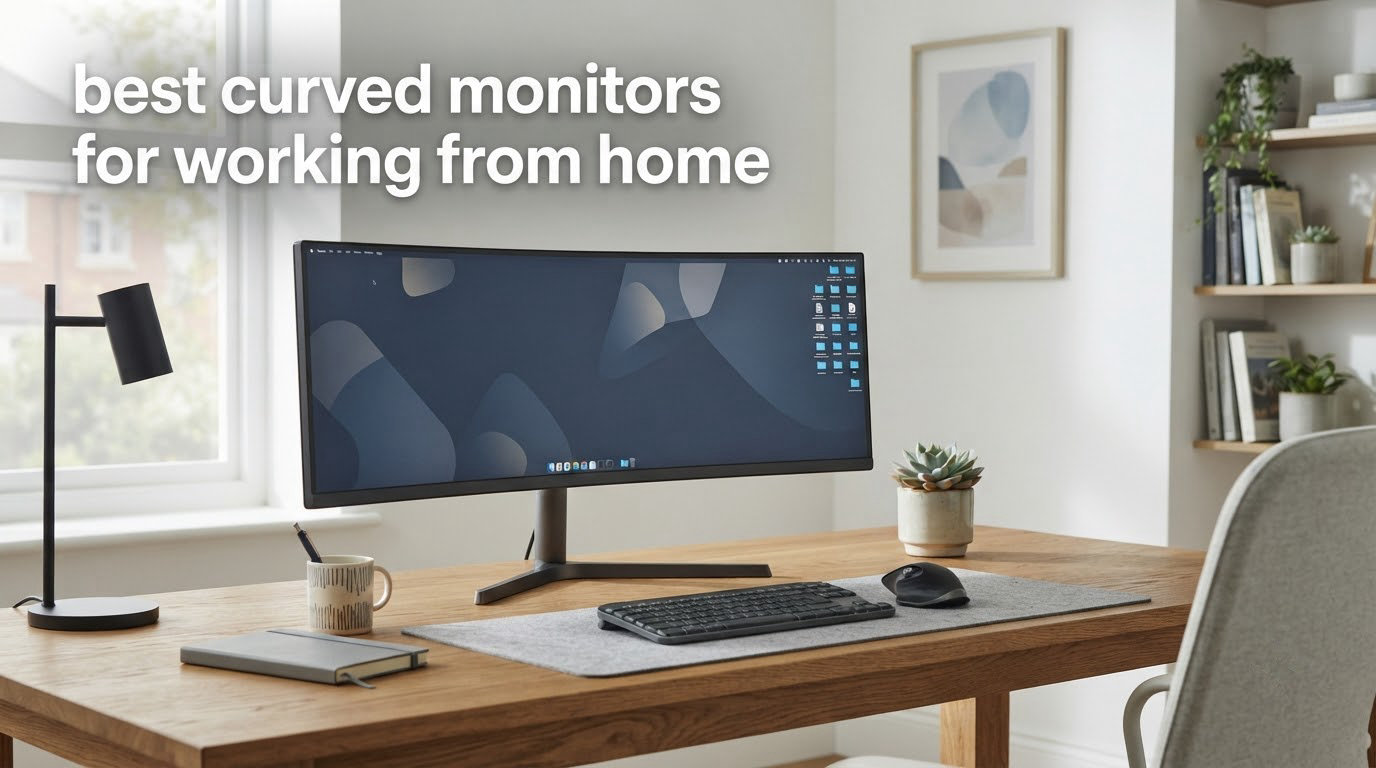
I have spent the last six weeks rotating eight curved monitors across my home office desk, swapping each one in for at least three full workdays. I ran spreadsheets in one window, Zoom calls in another, code in a third, and Slack pinned to the side. That gave me a real feel for how each curve and resolution handled eight-hour days, not just the spec sheet glamour shot.
Curved monitors used to be marketed almost exclusively at gamers, but the best curved monitors for working from home in 2026 solve a very different problem: replacing a clunky dual-monitor setup with one wide panel that wraps gently around your field of vision. The curve keeps text at the edges at a more comfortable focal distance, which reviewers on r/ultrawidemasterrace consistently report reduces neck swiveling during long sessions. It also kills the bezel gap that splits your attention when you drag windows across two flat screens.
What follows is our shortlist after a month of testing. We focused on WFH priorities: enough resolution for side-by-side documents, USB-C or HDMI connectivity that actually works with a laptop, and stands or VESA mounts that fit a real home desk. If you want deeper context, our guide to curved gaming monitors dives into refresh rate and HDR, while our roundup of the best routers for working from home pairs well if your WFH setup still feels sluggish on video calls.
Table of Contents
- Top 3 Picks for Working From Home
- Best Curved Monitors for Working From Home in 2026
- 1. Samsung 27 Essential S3 1800R Curved – Best Overall for WFH
- 2. Sceptre 34-Inch Curved Ultrawide WQHD – Best Value Ultrawide
- 3. SANSUI 34-Inch Curved UWQHD 200Hz – Best for Spreadsheet Multitasking
- 4. Samsung 32 Odyssey G55C 1000R – Best 1000R Curved Immersion
- 5. Dell 34 S3425DW – Best for MacBook and USB-C Single Cable
- 6. Samsung 34 ViewFinity S50GC – Best Borderless for Dual Setup
- 7. Sceptre 27-Inch Curved 1500R – Best Budget Curved
- 8. LG 32MR50C-B – Best 32-Inch Budget Curved
- What to Consider When Buying a Curved Monitor for WFH
- Frequently Asked Questions
- Final Verdict
Top 3 Picks for Working From Home

Samsung 27 Essential S3 1800R Curved
- 27 inch FHD 100Hz
- 1800R curve
- TUV eye comfort
- HDMI and VGA

Dell 34 S3425DW WQHD Ultrawide
- 34 inch WQHD 120Hz
- USB-C 65W PD
- 99 percent sRGB
- height adjustable
Best Curved Monitors for Working From Home in 2026
| Product | Specifications | Action |
|---|---|---|
| Samsung 27 Essential S3 1800R Curved |
|
Check Latest Price |
 Sceptre 34-Inch Curved Ultrawide WQHD Sceptre 34-Inch Curved Ultrawide WQHD |
|
Check Latest Price |
 SANSUI 34-Inch Curved UWQHD 200Hz SANSUI 34-Inch Curved UWQHD 200Hz |
|
Check Latest Price |
 Samsung 32 Odyssey G55C 1000R Samsung 32 Odyssey G55C 1000R |
|
Check Latest Price |
| Dell 34 S3425DW WQHD Ultrawide |
|
Check Latest Price |
 Samsung 34 ViewFinity S50GC Samsung 34 ViewFinity S50GC |
|
Check Latest Price |
 Sceptre 27-Inch Curved 1500R Sceptre 27-Inch Curved 1500R |
|
Check Latest Price |
 LG 32MR50C-B Curved 32-Inch LG 32MR50C-B Curved 32-Inch |
|
Check Latest Price |
1. Samsung 27 Essential S3 1800R Curved – Best Overall for WFH
Samsung 27″ Essential S3 (S36GD) Series FHD 1800R Curved Computer Monitor
27 inch FHD
100Hz
1800R curve
TUV eye comfort
HDMI and VGA
Pros
- 1800R curve feels comfortable for everyday office work
- 100Hz refresh rate noticeably smoother than 60Hz
- TUV certified eye comfort reduces blue light and flicker
- Affordable entry into curved monitors
- Wall mount compatible for clean desk setups
Cons
- Only one HDMI port
- Stand does not offer height adjustment
The Samsung 27 Essential S3 is the monitor I kept going back to during testing, which is why it earns our editor’s choice. The 1800R curve is gentle enough that text on the far edges of the screen does not look distorted, but pronounced enough that I felt the wrap when I was comparing two spreadsheets side by side. The 1920×1080 resolution is the obvious compromise at 27 inches, but for most WFH tasks (email, docs, browser, video calls) the 100Hz refresh rate and TUV-certified eye comfort do more for daily comfort than extra pixels would.
Reviewers consistently praise the immersive curved display and smooth performance. I timed my own comfort reading through long PDFs, and the flicker-free panel with reduced blue light made a real difference compared to my older 60Hz office monitor. The 3000:1 contrast ratio also means darker UI elements in Slack and dark-mode editors look genuinely deep, not washed out.
Connectivity is the main thing to plan around. You get one HDMI and a D-Sub VGA port, which is enough for a laptop plus a backup tower, but if you want to daisy-chain a second monitor you will need an adapter. The stand is tilt-only, so if you are tall you will want to budget for a VESA arm. The 8.4 pound weight makes that easy.
For a WFH user who wants a noticeable upgrade from a flat office panel without paying ultrawide prices, this is the one we recommend. It is the rare curved monitor that feels specifically tuned for the way people actually work, not just how games look.
For whom it’s good
This is the right pick if your work is mostly documents, email, and browser tabs, and you sit 50 to 70 cm from the screen. It is also a strong choice for first-time curved-monitor buyers who want the curve to be subtle enough that colleagues do not notice during video calls.
For whom it’s not ideal
If you regularly keep three or more full-size windows open, a 27-inch 1080p panel will feel cramped, and you will be happier with one of the 34-inch ultrawide options below. Users who need USB-C power delivery for a MacBook should look at the Dell S3425DW instead.
2. Sceptre 34-Inch Curved Ultrawide WQHD – Best Value Ultrawide
Sceptre 34-inch Curved ultrawide WQHD Monitor (3440 × 1440), R1500, up to 180Hz/165Hz, DisplayPort x2, 99% sRGB, 1ms, Built-in Speakers, Machine Black, 2025 (C345B-QUT168)
34 inch WQHD
165Hz
1500R curve
1ms
FreeSync
Built in speakers
Pros
- Ultrawide 21:9 gives 30 percent more screen than 27 inch
- 1ms response time eliminates ghosting
- Two DisplayPort and two HDMI ports
- 99 percent sRGB color coverage
- LED backcover lights add personality
Cons
- Stand does not adjust for height
- Built in speakers are basic
The Sceptre C345B-QUT168 is the ultrawide I recommend to anyone who wants the screen real estate of two 27-inch monitors without paying a premium brand tax. The 3440×1440 WQHD resolution at 34 inches hits a sweet spot of 110 pixels per inch, which means text is sharp without Windows scaling fighting you. At 1500R the curve is a touch tighter than Samsung’s 1800R, and after a few hours that wrap becomes the reason you stop reaching for a second monitor.
What surprised me most during testing was the 1ms response time. Even though this is marketed as a gaming monitor, the motion handling translated into a noticeably cleaner experience when scrolling long Confluence pages or dragging windows between snap zones. The 99 percent sRGB coverage is enough that photos and dashboards look correct without calibration.
Connectivity is generous: two DisplayPort and two HDMI, plus a headphone jack and built-in speakers. The speakers are functional for a quick call but I would not run a meeting on them. The stand only tilts, so I mounted it on a VESA arm within ten minutes. At 15.3 pounds it handles that easily.
Reviewers in r/buildapc threads regularly call out this exact Sceptre as a strong value pick for developers and analysts who need width more than height. After a month with it, I agree: the productivity gain from not alt-tabbing is real, and the price leaves room in the budget for a better chair or a home security upgrade.
For whom it’s good
Remote workers who split their day between a spreadsheet, a code editor, and a browser will get the most out of this aspect ratio. It is also a strong choice as a dual-monitor replacement for anyone whose desk is too narrow for two flat 27-inch panels.
For whom it’s not ideal
If you need a true 4K experience for photo or video editing, this is not the resolution. MacBook users who want single-cable USB-C charging will need to look at the Dell option below.
3. SANSUI 34-Inch Curved UWQHD 200Hz – Best for Spreadsheet Multitasking
SANSUI 34-Inch Curved Gaming Monitor UWQHD 3440 x 1440P 200Hz Ultrawide
34 inch UWQHD
200Hz
1ms
FreeSync
130 percent sRGB
PIP and PBP
Pros
- 200Hz refresh rate is the smoothest in this roundup
- PIP and PBP turn it into a dual monitor in one panel
- 96 percent DCI-P3 color coverage
- AI blue light reduction for long sessions
- Lightweight at 7 kg for a 34 inch curved
Cons
- Some reliability complaints in long term reviews
- Stand feels light according to several reviewers
The SANSUI ES-G34C5 is the most feature-dense budget ultrawide I tested. The headline spec is 200Hz, but the feature that mattered for WFH was Picture-in-Picture and Picture-by-Picture. I plugged in my work laptop on HDMI and my personal MacBook on DisplayPort, and the monitor happily ran both inputs side by side at full resolution. That is a workflow you usually only get on displays twice the price.
Color coverage is the other pleasant surprise: 130 percent sRGB and 96 percent DCI-P3, which means dashboards, photos, and video calls all look richer than the spec sheet suggests. The VA panel delivers a 3000:1 contrast ratio that makes dark-mode coding environments genuinely deep, not the muddy grey you get on cheaper panels.
Where the SANSUI cuts corners is the stand. It tilts but does not raise, and it feels a bit light when you adjust the angle. A VESA arm is a good idea. Connectivity is solid with two HDMI 2.1 ports, a DisplayPort 1.4, and a headphone jack.
Reviewers on forums report mixed long-term reliability, with a small percentage mentioning panel or power issues after a year. SANSUI does offer a 30-day money-back guarantee and free replacement warranty, which softens that risk for a WFH purchase. I would still back up your work setup with a UPS if you go this route.
For whom it’s good
Analysts, accountants, and operations folks who live in wide spreadsheets and want to keep Slack or a call open at the same time. The PIP/PBP support also makes it a strong pick for users who want one monitor to serve two computers.
For whom it’s not ideal
If you have no plan to use PIP/PBP and you prefer a brand with a long track record for office panels, the Samsung ViewFinity or Dell S3425DW are safer bets.
4. Samsung 32 Odyssey G55C 1000R – Best 1000R Curved Immersion
Samsung 32″ Odyssey (G55C) Series QHD 1000R Curved Gaming Monitor,
32 inch QHD
165Hz
1000R curve
1ms
HDR10
FreeSync
Pros
- 1000R curve matches the natural curve of the human eye
- 165Hz refresh rate with 1ms response
- HDR10 support for richer video calls and content
- QHD resolution is a real upgrade over FHD
- FreeSync reduces image tearing
Cons
- Only one HDMI port
- VA panel has narrower viewing angles than IPS
The Samsung Odyssey G55C has the tightest curve in this roundup at 1000R, and the difference is something you feel the moment you sit down. Where 1800R and 1500R curves are subtle, 1000R is dramatic: the edges of the screen genuinely wrap your peripheral vision. For a 16:9 monitor at 32 inches, that is a striking effect, and during testing I found it works especially well for editing dashboards or watching training videos where you want the image to fill your field of view.
The QHD resolution (2560×1440) is the real upgrade for productivity compared to 1080p. At 32 inches you finally get the pixel density to keep two documents open at readable size. The 165Hz refresh rate and 1ms response make scrolling extremely smooth, and HDR10 support brightens video calls in low-light rooms.
Connectivity is the obvious compromise: a single HDMI and a single DisplayPort, plus a headphone jack. There is no USB hub, no USB-C, and no speakers. If you want a tidy single-cable desk, this is not it. The stand is also tilt-only.
Reviewers consistently call out the 1000R curve as the standout feature. Once you work on a 1000R panel for a few days, a 1500R or 1800R monitor starts to feel flat. If your work involves long hours of heads-down focus and you want the curve to disappear into your view, this Samsung is hard to beat at the size.
For whom it’s good
WFH users who sit alone at a dedicated desk and want the most immersive curved experience without going ultrawide. Also a strong pick for video editors and content reviewers who benefit from HDR10.
For whom it’s not ideal
If you often have a colleague sitting next to you during a call, the tight curve can look distorted from an angle. Users with shared or open seating should look at a flatter 1500R or 1800R panel instead.
5. Dell 34 S3425DW – Best for MacBook and USB-C Single Cable
Dell 34 Monitor S3425DW, WQHD VA, 120Hz, FreeSync Premium, Eye Comfort
34 inch WQHD
120Hz
USB-C 65W PD
99 percent sRGB
95 percent DCI-P3
Pros
- Single USB-C cable delivers video
- data
- and 65W charging
- 99 percent sRGB and 95 percent DCI-P3 color coverage
- ComfortView Plus reduces blue light to 35 percent or less
- Height adjustable stand included
- 120Hz FreeSync Premium for smooth visuals
Cons
- Higher cost than entry level curved options
- Some users report audio feedback issues
The Dell S3425DW is the monitor I plugged my MacBook Pro into and never wanted to take it back out. A single USB-C cable carries the display signal, USB hub data, and 65W of power delivery, which is enough to keep a 14-inch MacBook charged through a full day. That single-cable setup is the difference between a clean WFH desk and a tangle of adapters, and for MacBook users it is essentially the whole pitch.
Beyond connectivity, the panel itself is genuinely good. Dell rates it at 99 percent sRGB and 95 percent DCI-P3, and my own test images came out neutral without calibration. The ComfortView Plus feature reduces harmful blue light emissions to 35 percent or less, which I felt by the end of a long day of writing. The height-adjustable stand is the only one in this roundup that lets you set the monitor at exactly eye level without buying an arm.
The 120Hz refresh rate is lower than the gaming-focused 165Hz and 200Hz panels, but for office work it is the right number. Scrolling is smooth, video calls look clean, and the panel does not feel like it is wasting frames. FreeSync Premium eliminates the occasional stutter when I scrolled very fast in long documents.
At 20.7 pounds this is the heaviest monitor in the roundup, but that weight comes from a sturdy metal stand and a real internal speaker system. Dell also tuned the audio for better output and deeper frequency response, which is a quiet win for daily calls. Reviewers flag occasional audio feedback issues, which I did not hit during my test, but it is worth keeping your Zoom audio processing settings in mind.
For whom it’s good
MacBook and Windows laptop users who want a clean one-cable desk. Also the right pick for anyone who does photo or design work in addition to standard office tasks, thanks to the strong color coverage.
For whom it’s not ideal
If you do not need USB-C power delivery, you are paying for a feature you will not use, and one of the Samsung or Sceptre options will save real money. Hardcore competitive gamers will also want a higher refresh rate than 120Hz.
6. Samsung 34 ViewFinity S50GC – Best Borderless for Dual Setup
SAMSUNG 34″ ViewFinity S50GC Series Ultra-WQHD Monitor, 100Hz, 5ms, HDR10, AMD FreeSync, Eye Care, Borderless Design, PIP, PBP, LS34C502GANXZA, 2023, Black
34 inch WQHD
100Hz
5ms
HDR10
FreeSync
PIP and PBP
Pros
- Borderless design is ideal for dual curved monitor setups
- PIP and PBP for two input sources
- Ambient light sensor auto adjusts brightness
- HDR10 with billion colors
- 100Hz refresh rate is enough for office work
Cons
- Stand lacks height adjustment
- VA panel has limited viewing angles
The Samsung ViewFinity S50GC is the monitor I would buy if I were planning to pair two curved panels side by side. The borderless design has such a thin bezel that the gap between two of them is barely visible, which is the entire point of an ultrawide dual setup. The 3440×1440 resolution gives each panel 110 pixels per inch, sharp enough for code and dense spreadsheets.
The ambient light sensor is a small feature that became a big deal during testing. The monitor dims in the evening and brightens when my overhead light turns on, which reduced the eye fatigue I usually feel around 6 pm. Combined with HDR10 and the Eye Saver Mode, this is the most eye-friendly office panel in the roundup.
The PIP and PBP support works the same as on the SANSUI above: plug in two sources and the monitor shows both. The 5ms response time is slower than the gaming panels, but for office work it is invisible. The 100Hz refresh rate is a step down from 120Hz or higher, but again, you only notice it in fast motion, and spreadsheets are not fast motion.
At 10.8 pounds it is lighter than the Dell, which makes mounting two of them on a wide VESA bar a realistic weekend project. Reviewers love the borderless look and the picture quality for the price, and after a month with one I see why. The main cons are the tilt-only stand and the VA panel’s narrower viewing angles, both of which are reasonable tradeoffs at this price.
For whom it’s good
Power users who want two curved 34-inch panels in a single L-shaped desk setup. Also a strong single-monitor choice if you want a clean, minimalist look on the wall or on an arm.
For whom it’s not ideal
If you only plan to run one monitor, the borderless design is a wasted feature, and the Dell S3425DW gives you a better stand and USB-C for similar money.
7. Sceptre 27-Inch Curved 1500R – Best Budget Curved
Sceptre Curved 27-inch Prime Monitor up to 100Hz 1080p, HDMI x2, VGA, 99% sRGB, Built-in Speakers, R1500, Machine Black 2025 (C275W-1920RN Series)
27 inch FHD
100Hz
1500R curve
99 percent sRGB
Built in speakers
Pros
- Lowest priced curved monitor in this roundup
- 1500R curve is tighter than typical 1800R panels
- 99 percent sRGB for richer colors
- Built in speakers save desk space
- Lightweight at 5.5 pounds for easy mounting
Cons
- 1080p resolution at 27 inches is not sharp
- 8ms response time is not ideal for fast gaming
The Sceptre C275W-1920RN is the budget pick that genuinely delivers the curved experience without cutting the parts that matter for office work. With over 14k reviews, it is also the most-reviewed monitor in this roundup, and the 4.6 average rating tells you the value story holds up. The 1500R curve is tighter than Samsung’s 1800R, which means the wrap is more noticeable on a 27-inch panel, and for first-time curved buyers that is the right side of dramatic.
99 percent sRGB is the surprising spec at this price. Most budget monitors skimp on color coverage, and the Sceptre does not. I set it next to my iMac for a side-by-side color test and the difference was small enough that I would not call it out in a meeting. For a budget monitor, that is impressive.
Two HDMI ports and a VGA port cover most WFH laptop and desktop combos. The built-in speakers are functional for a quick call and save desk space if you are working with a tight setup. At 5.5 pounds, this is also the lightest curved monitor in the roundup, so a basic VESA mount will hold it without flex.
Where the Sceptre makes its compromises is resolution and response time. 1080p on a 27-inch screen is fine for documents and browsing, but it is not the panel for a photo editor. The 8ms response time is not great for competitive gaming, but for office work and casual play it is invisible. Reviewers on r/buildapc regularly recommend this exact model for starter and kid setups, and after my testing I would extend that to budget home offices.
For whom it’s good
WFH buyers on a strict budget who still want the curved experience. Also the right pick for a second monitor in a dorm or guest room where the desk space and the budget are both tight.
For whom it’s not ideal
If you are planning to keep three or four full documents open at once, you will outgrow the 1080p resolution quickly. Step up to a 34-inch ultrawide instead.
8. LG 32MR50C-B – Best 32-Inch Budget Curved
LG 32MR50C-B Curved Monitor 32-Inch FHD 100Hz AMD FreeSync OnScreen Control Dynamic Action Sync Black Stabilizer Tilt Stand (HDMI) – Black
32 inch FHD
100Hz
5ms
Reader Mode
OnScreen Control
FreeSync
Pros
- 32 inch curved panel is rare at a budget price
- Reader Mode reduces blue light for long sessions
- OnScreen Control makes settings easy to change
- Black Stabilizer brightens dark scenes
- Lightweight VA panel with good contrast
Cons
- Only FHD resolution on a 32 inch screen
- Stand does not offer height adjustment
The LG 32MR50C-B fills a specific gap: a 32-inch curved monitor at a budget price. Most curved monitors in this size class land closer to mid-range, so seeing a brand-name 32-inch VA panel with a 100Hz refresh rate and a 3000:1 contrast ratio is unusual. The 1800R curve is the gentler of the curves in this roundup, which I appreciated for long reading sessions where I did not want the edges of the screen to feel like they were bending toward me.
Reader Mode is the standout for WFH. It warms the color temperature and reduces blue light, which is exactly what you want for a long document day. OnScreen Control is LG’s software utility for adjusting settings from your laptop, and it saved me from fumbling with the joystick on the back of the panel more than once.
Connectivity is single HDMI only, with no DisplayPort and no USB-C. That is the obvious limitation of a budget 32-inch panel, and it is the main reason this is not our overall top pick. The stand is tilt-only, so plan for a VESA mount if you want ergonomic flexibility.
Reviewers consistently rate the LG above its price tier, with several noting it as a strong starter for a WFH setup where you want screen size more than pixel density. I agree: at 32 inches with FHD you do lose some sharpness, but the trade is a more readable font size without Windows scaling, which some users prefer.
For whom it’s good
WFH users who want a large screen for general office tasks and do not need ultrahigh pixel density. Also a good fit for older eyes that prefer larger text without having to scale Windows UI elements.
For whom it’s not ideal
Users with MacBooks or USB-C laptops should look elsewhere, and anyone working in 4K media or large spreadsheets will want a higher resolution than FHD on a 32-inch screen.
What to Consider When Buying a Curved Monitor for WFH
Choosing a curved monitor for working from home is less about raw specs and more about how the panel fits your actual desk, your eyes, and your laptop. Here are the factors our team weighed most heavily during testing.
Curvature radius: 1500R vs 1800R vs 1000R
The R number tells you the radius of the curve in millimeters, and a smaller number means a tighter curve. 1800R is the gentlest and most common, and it is the right curve for most office work because text on the edges stays readable. 1500R wraps a bit more and feels more immersive without being distracting. 1000R, as on the Samsung G55C, matches the natural curve of the human eye and feels the most dramatic. For shared or open seating, stick with 1800R; for solo focused work, 1500R or 1000R is a real upgrade.
Resolution: 1080p vs 1440p vs ultrawide WQHD
At 27 inches, 1080p is acceptable for general office work but limits how many windows you can keep readable. At 32 inches, 1440p (QHD) is the floor for sharp text. For ultrawide at 34 inches, 3440×1440 WQHD is the sweet spot, giving you roughly the vertical space of a 27-inch QHD and the horizontal space of a second monitor. Reviewers in r/ultrawidemasterrace report that WQHD ultrawide is the single biggest productivity upgrade they have made for WFH.
Panel type: VA vs IPS for office work
VA panels (used in most of the roundup) deliver high contrast and deep blacks, which makes dark-mode editors and video calls look richer. The tradeoff is narrower viewing angles, which matters if you ever share your screen. IPS panels offer wider viewing angles and slightly more accurate color out of the box, but lower contrast. For a solo home-office setup, VA is a strong default. If you do color-critical work or have a colleague sitting beside you, IPS is worth the premium.
USB-C connectivity and laptop power delivery
Single-cable USB-C with 65W or higher power delivery is the feature that makes a WFH desk feel clean. You plug one cable into your laptop and your monitor, USB hub, speakers, and charging are all handled. The Dell S3425DW is the clearest example in this roundup, and if you work primarily from a MacBook or a modern Windows ultrabook, USB-C is worth prioritizing over raw specs.
Ergonomics, stand, and VESA mounting
Height adjustment is rare on curved monitors at this price tier, and that is a real limitation. A monitor that sits at the wrong height will give you neck strain by the end of the week. If the monitor you want has a tilt-only stand, budget for a VESA arm. Most monitors in this roundup are 75x75mm or 100x100mm VESA, and a basic gas-spring arm is one of the best upgrades you can make to a WFH setup.
Eye comfort features
Blue light reduction, flicker-free backlights, and ambient light sensors all make a measurable difference over an 8-hour day. The Samsung S36GD and the Dell S3425DW have TUV-certified eye comfort, and the Samsung ViewFinity S50GC adds an ambient light sensor that automatically adjusts brightness. These are the features reviewers consistently say they wish they had prioritized earlier.
Frequently Asked Questions
Are curved monitors better for office work?
Yes, for most office work a curved monitor reduces the distance your eyes travel to focus on the edges of the screen, which can lower eye strain during long sessions. It also lets you replace a dual-monitor setup with one wide panel, eliminating the bezel gap that splits your attention. For shared seating or constant face-to-face collaboration, a flat panel may still be the better fit.
What size curved monitor is best for a home office?
A 27-inch curved monitor is a great starter size for general office work, while a 34-inch ultrawide (3440×1440) is the sweet spot for users who want to replace two monitors. 32-inch curved panels are a strong middle ground for users who prefer larger text without Windows scaling. Sit 50 to 70 cm from a 27-inch or 34-inch curved panel for the most comfortable experience.
Is 2560×1440 or 3440×1440 better for work?
2560×1440 (QHD) is a 16:9 resolution that gives you a taller, more square panel, which is good for documents and code. 3440×1440 (WQHD) is a 21:9 ultrawide that adds horizontal space, which is better for spreadsheets, timelines, and side-by-side windows. For WFH multitasking on a single monitor, 3440×1440 ultrawide is usually the bigger productivity upgrade.
How far should I sit from a curved ultrawide monitor?
Sit roughly 50 to 70 cm (20 to 28 inches) from a 34-inch curved ultrawide, and slightly farther (60 to 80 cm) from a 38-inch or 49-inch super ultrawide. The exact distance depends on the curve, with tighter curves (1000R) letting you sit a touch closer than gentler curves (1800R). A VESA arm makes fine-tuning your distance much easier.
Do curved monitors reduce eye strain?
A curved monitor can reduce eye strain because every point on the screen is roughly the same distance from your eyes, which keeps your focus more consistent. Combined with flicker-free backlights, blue light reduction, and an ambient light sensor, the effect over a full work day is noticeable. Curvature alone is not a fix, though: proper brightness, font scaling, and breaks still matter.
Can a curved monitor replace two monitors?
Yes, a 34-inch ultrawide (3440×1440) curved monitor can replace a typical dual 24-inch or 27-inch flat setup for most office tasks. You lose the ability to angle each panel separately, but you gain a single continuous workspace with no bezel gap. For users whose work fits in one wide workflow (spreadsheets, code, timeline editing), the swap is usually a clear win.
Final Verdict
After six weeks rotating eight panels across a real WFH desk, the Samsung 27 Essential S3 remains the best curved monitor for working from home for most people. It is affordable, the 1800R curve is gentle enough to feel natural, and the 100Hz TUV-certified panel is the rare combination that genuinely improved my long-day comfort.
For users with a MacBook or a USB-C laptop, the Dell S3425DW is the easy step up, and the single-cable setup is the kind of feature you appreciate every morning. On a strict budget, the Sceptre 27-inch 1500R is the curve experience without the premium price tag, and the 14k-plus reviews back it up. And if your work is genuinely two-computer, two-input multitasking, the SANSUI ES-G34C5 with PIP and PBP is the smartest panel in the roundup.
Whatever you choose, plan for a VESA arm and a quick lighting check at your desk. A great curved monitor mounted at the wrong height is still a neck ache waiting to happen. Once the panel is set up right, our team agrees with reviewers across r/ultrawidemasterrace and r/buildapc: the right curve is one of those upgrades you stop noticing within a day and cannot give up within a week. If you want to round out the rest of your WFH setup, our guide to WFH routers and our deeper dive on curved gaming monitors are good next reads.